
A modifier is a choice or addition attached to an ordered item: an oat drink instead of the standard milk, for example, or an extra espresso shot. Before configuring your coffee shop POS, decide what each base drink includes. The till total and the preparation detail should describe the same drink.
Write a short menu rule for each choice
On a small screen, scroll the table sideways to read every column.
| Choice | Decide before setup | Check in the POS |
|---|---|---|
| Cup size | Whether regular and large are separate products or configured size choices, and what each includes. | The selected size is visible and the correct service price is used. |
| Milk alternative | Which choices replace the standard milk and whether each has a supplement. | The drink shows the chosen alternative. Check the selection rules in the actual menu. |
| Extra shot | How many shots the base drink includes and what one additional shot costs. | The extra adds the agreed amount once and is attached to the correct drink. |
| Syrup | Which flavours and quantities are offered, including any charge. | The requested selection is readable and priced as configured. |
| Preparation note | Instructions that do not change the price, such as “extra hot”. | The note stays with its drink and reaches the preparation team. It does not set a price or verify an allergen request. |
Use a configured priced choice for a charged extra. Typing “extra shot” into a free-text note does not establish that the extra was charged. Where a drink needs exactly one milk selection, check the permitted choices and validation during the demo rather than assuming a label enforces that rule.
Try two lattes with different instructions
Illustrative menu and prices: the figures below explain the arithmetic. They are not a POSMENTOR quote, a recommended selling price or a customer transaction. This is a proposed demo exercise, not a newly tested latte order.
On a small screen, scroll the table sideways to read every column.
| Line | Request | Price check |
|---|---|---|
| 1 | Large latte with oat drink, one extra shot, “extra hot”. | £3.80 base + £0.40 oat supplement + £0.60 extra shot = £4.80. |
| 2 | Large latte with standard milk, no extra shot, no preparation note. | £3.80 base; the choices from line 1 must not be copied to it. |
| Order | One of each drink. | £8.60 for these two lines, before any other applicable charges. |
Compare the basket with your written menu, then ask for the two lines on the preparation screen or printer you intend to use. The first drink needs its milk choice, additional shot and note; the second needs to remain a plain large latte. Confirm how your configuration handles two differently customised drinks rather than increasing one identical line to a quantity of two.
Review the base product before adding choices
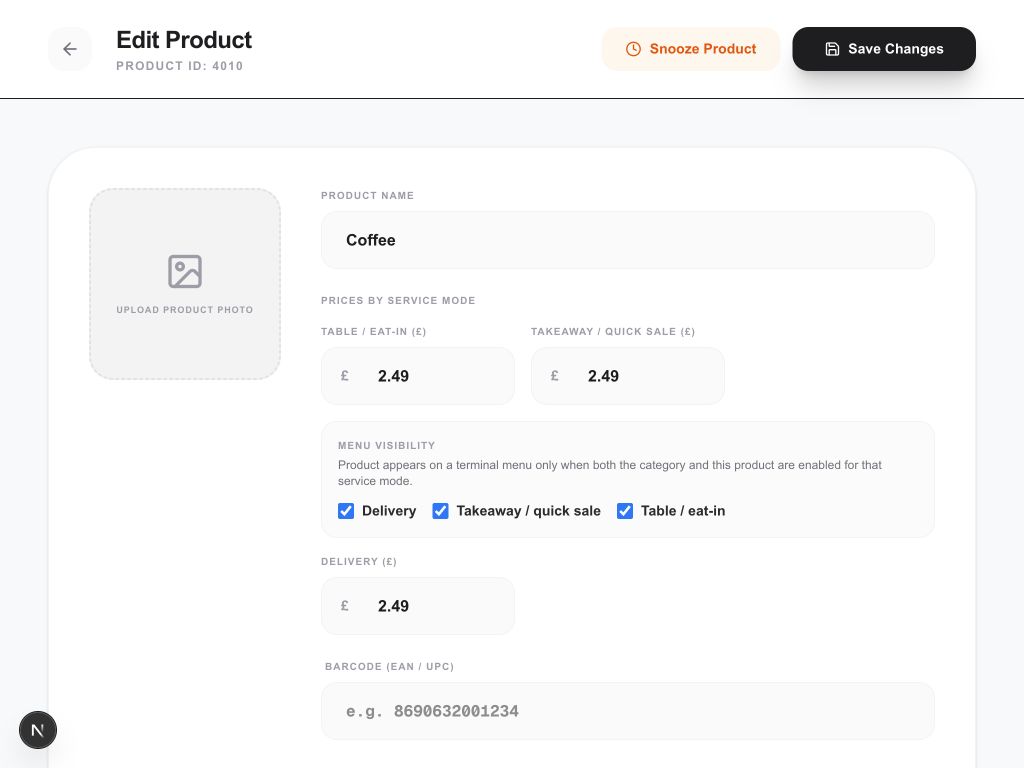
POSMENTOR supports configured product options, extras and order-line notes. Review the base product's eat-in, takeaway and delivery prices where you use those services, then check the final basket amount with each priced choice. Keep the preparation wording short enough to read quickly.
If your menu has many similar choices, ask staff to locate the correct drink and modifier without guidance during the demo. Record confusing names or unnecessary choices and revise those before training the rest of the team.
Check the handover, including changes
- Take the two differently configured lattes in a demonstration account.
- Review the displayed or printed preparation detail against the original request.
- Ask how staff correct a milk selection after the order has been sent. Check what the barista sees and who confirms the correction.
- Confirm how the counter identifies each finished drink when handing it to the customer.
A preparation note does not establish allergen suitability or prevent cross-contact. Staff still need the venue's ingredient information and normal allergy procedures. Do not use a free-text note as a substitute for those checks.
For equipment choices, see kitchen displays and printers. Include the actual counter-to-barista handover in your demonstration: not every reopened-order or dispatch view retains every line note.
A selling-price supplement is not a recipe change
A 40p supplement does not tell you how much the milk alternative costs per drink. Check its purchase price, recipe quantity and the base ingredients it replaces. Review how the configured product and extra affect stock; do not assume a note or option name automatically substitutes an ingredient.
The latte cost guide explains a separate stock-and-recipe example. You can also use the standalone Recipe Cost calculator with your own purchase prices. Missing prices or recipe quantities remain unknown, not free.
For the wider purchase decision, use our small-café POS selection guide and café POS cost guide. Explore POSMENTOR for cafés and bring your drinks menu to the demo.