
A kitchen display system, or KDS, presents orders on a screen. A kitchen printer produces tickets that staff can place on a rail or pass to another station. Neither choice removes the need for a clear routine when an order changes or a bag is ready to collect.
Compare the job, not just the device price
On a small screen, scroll the table sideways to read every column.
| Decision | Kitchen display | Kitchen printer |
|---|---|---|
| How cooks find the next order | A visible queue; check navigation and readability when several tickets arrive. | A physical ticket queue; agree the order on the rail and who moves each ticket. |
| Preparation status | Staff can use the configured status controls. Agree who changes them and when. | Staff organise paper tickets or communicate status separately. Printing alone does not record preparation progress. |
| An order changes | Check how additions and corrections appear in the chosen system. Do not assume all updates are automatic. | The original sheet remains unchanged. Agree when to print a new slip and how staff identify it. |
| Instructions | Check the item, extras and notes at the real viewing distance. | Print the longest item and note on the chosen paper width and inspect the result. |
| Packing and collection | Verify which details are visible to the person packing, not just to the cook. | A slip may travel with the order, but staff still need to match the right ticket, food and collection reference. |
| During an interruption | Needs power and connectivity to the configured POS server. | An already printed ticket remains readable; receiving a new ticket still depends on the printing and POS setup. |
Read the extra and the note separately
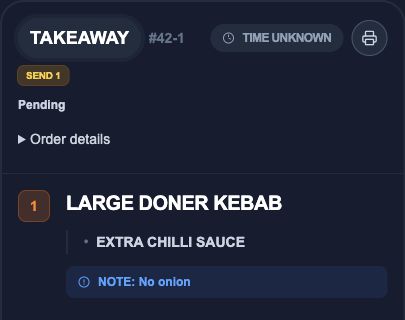
The cook needs the large kebab, the extra sauce and the onion instruction. If you choose a printer, ask for these same details on a physical ticket before accepting the setup. We have not substituted a mock paper ticket for that test.
POSMENTOR provides a kitchen and dispatch workflow. Preparation notes are visible in the kitchen, but not every dispatch or reopened-order view reliably retains every line note. Agree how those instructions reach the packing counter.
Which arrangement fits your takeaway?
A small counter with one preparation station
A printer can be a practical choice when the team already works from a ticket rail and does not need shared preparation status. Confirm how a revised order replaces or supplements the original paper, and keep paper replenishment in the opening checks.
A shop where the counter needs preparation status
Consider a display when cooks and counter staff need to work from an order queue. In the demo, fill the view with several sample tickets and check that the team can find the right order and operate its status controls. A screen is useful only if staff follow the agreed process.
A screen for preparation and paper for a separate handover
You may need both, but define a different job for each. Ask whether a bag slip, receipt or kitchen ticket is the appropriate paper output. Verify the available configuration and prevent two copies from being treated as two orders. Do not assume automatic backup printing if the display becomes unavailable.
What needs checking before installation?
For a display, confirm the screen model, browser, mounting position, power and connection to the POS server. For POSMENTOR local printing, check the compatible network ESC/POS printer, its network reachability and an Ax Bridge host. A browser or a provider logo alone does not establish device compatibility.
Cloud operation needs access to the API. With POSMENTOR EL local deployment, the store's main computer and local network remain dependencies. External orders and card services have separate connectivity requirements. Neither a screen nor a printer is a promise of offline card authorisation.
Compare the equipment purchase or rental, mounting, installation, software entitlement, support and consumables in the takeaway quote table. Check current plans and your exact equipment; missing charges are not zero.
Test one change before your first service
- Take one sample order with a charged extra and a note in a demonstration account.
- Read it at the preparation station on the proposed equipment.
- Ask how an addition or correction reaches the cook once preparation has started.
- Walk the order to packing and collection, checking the identifier and instructions at each handover.
- Agree what staff do if the display or printer is unavailable, without creating duplicate orders or retrying an uncertain payment.
Use the full takeaway EPOS demo checklist to record what was demonstrated, then review the takeaway setup with your device list.