
The POSMENTOR ChatGPT connection can prepare a new standard product, a product group or a supported change to an existing item. This guide follows one sandwich example and a separate coffee-price change. For account access, start with the connection requirements.
1. Find the restaurant and the right menu group
Use POSMENTOR to show the connected restaurant, its currency and the menu groups. Do not change anything.
Check the restaurant before preparing any change. The connection uses the signed-in account; typing another restaurant’s name does not grant access to its menu. You need an active restaurant administrator account, a valid licence, menu-management access and the relevant connection permissions.
Choose an existing group that belongs to the restaurant. A shared or inherited catalogue may be readable without being editable. If the required group is missing, creating it is a separate preview and approval; select the saved group before preparing a product in it.
In the example below, the venue already has a Sandwiches group. Check for an existing item with the same name before adding another one.
2. Prepare a standard product with three prices
Prepare a standard Cheese sandwich in the Sandwiches group, described as “Cheddar cheese sandwich”. Set eat-in £5.50, takeaway £5.00 and delivery £6.00. Show the preview before saving.
| Service type | Proposed price | What to check |
|---|---|---|
| Eat-in | £5.50 | The price for seated service. |
| Takeaway | £5.00 | The counter or collection price you intend to use. |
| Delivery | £6.00 | The product’s POS delivery price, not a delivery fee or marketplace publication. |
Creation needs an explicit price for all three service types. Do not let a missing price become £0 or silently copy another channel. The new product follows the selected group’s channel settings. Check detailed menu visibility in POSMENTOR before approval.
The proposed product is a standard item. It does not set up a choice of bread, extra fillings or a meal bundle. Use the POS product tools for those options and for any tax configuration.
3. Review the exact preview
Before giving approval, compare the returned preview with what you asked for:
- Restaurant and group: the intended restaurant and its selected menu group.
- Product: the exact name and description, with no invented ingredients or dietary claims.
- Prices and currency: all three service prices, not just the one you usually use.
- Operation: a new standard product, rather than an unintended edit or duplicate.
- Visibility and scope: the preview’s explanation that visibility follows the group, and any other limitations. Check the actual visibility controls in POSMENTOR.
If a detail is wrong, request a corrected preview and review it again. Leave the earlier preview unapproved. A request to prepare an item is not permission to save it.
4. Approve separately, then check the saved item
Once the preview is correct, send a separate message approving that exact change. For example: “Save the Cheese sandwich in the reviewed preview with those three prices.” This is a sample approval phrase for your own workflow, not an instruction to save the example in this guide.
Check the returned save result, then ask ChatGPT to read the saved product and show its group, description and service prices. Compare them with the approved preview. Saving a product and checking its stored details are separate steps.
If a save result is unclear, ask ChatGPT to retry that same confirmed change. It must reuse the original confirmation, rather than prepare another product. If a preview expires, or the underlying item changes before approval, request a fresh preview, review it and give separate approval again.
5. Change one existing field
For an existing item, find the exact product and read its current details first. Resolve duplicate names or a shared catalogue restriction before asking for an update. A supported update changes one field per preview.
Find the exact Latte product in the Coffee group and show its current service prices. Prepare a change to the takeaway price only, to £3.40. Leave eat-in and delivery unchanged. Show the preview before saving.
The £3.40 is an illustrative proposed selling price. The old price must come from the connected product; it should not be invented for the comparison. In the preview, check the before and after values and the service type. Then follow the same separate approval and readback process.
You can also prepare a supported name or description change as its own operation. A price or description update does not configure a recipe, ingredient costs or stock movements. Review those in inventory and recipes.
Use the product editor for the wider setup
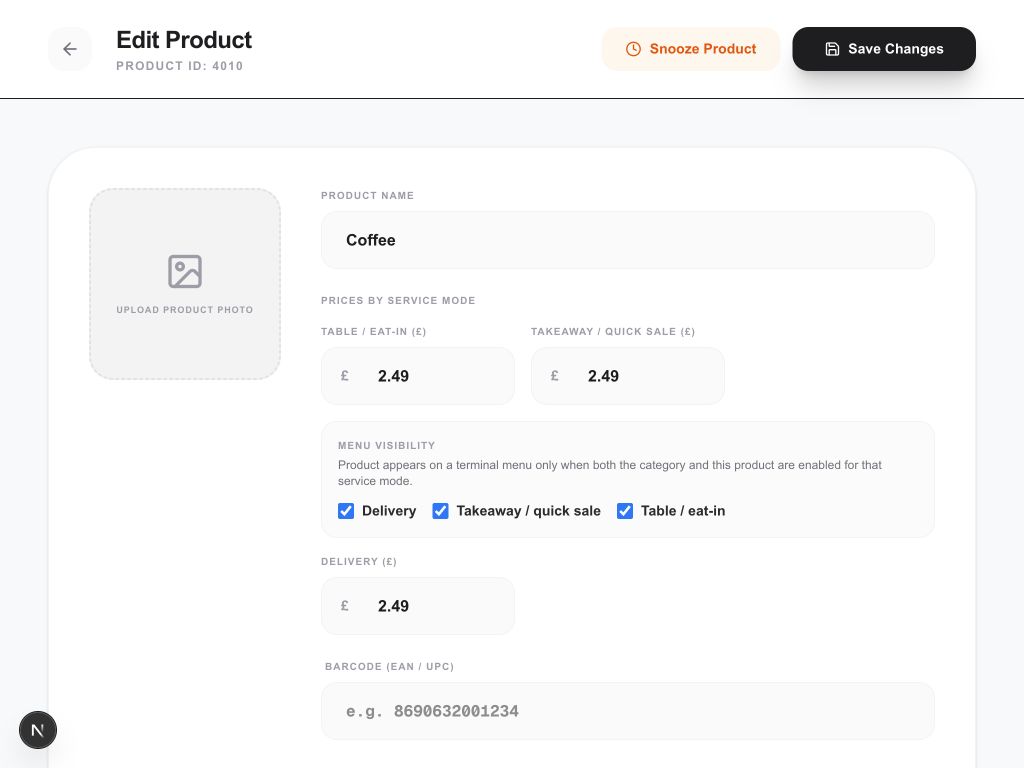
The real POSMENTOR screen below shows Coffee service prices and menu visibility in the POS application. Its £2.49 prices are demonstration values from the original capture, separate from this guide’s proposed examples.
6. Keep complex setup in POSMENTOR
- Standard products and groups
- The connection can prepare a standard product in an existing owned group or a new product group, subject to account permissions. Each operation needs its own preview and approval.
- Existing product fields
- Supported updates include name, description and one service price. An available active item can also be deactivated; it then leaves the connector’s active catalogue. Use POSMENTOR to manage inactive items or reactivate them.
- Options, bundles and ingredients
- Configure modifier groups, bundles, weighed products, images, recipes, stock and tax settings in the relevant POS screens. Changing the selling price does not establish the product’s cost or margin.
- Marketplace menus
- A catalogue change is not proof that an Uber Eats or Deliveroo menu has been published. Follow the relevant Uber Eats or Deliveroo menu workflow and check its result. Do not assume every external channel updates automatically.
For a demo, bring one standard item with the intended group, approved description and three selling prices. Use the ChatGPT sales reporting guide for the separate question of how to review sales. The latte costing example covers ingredient costs, and the table-ordering guide explains how to check a new order or additions to an existing bill.